Why is a Kubernetes Job still "Pending"? Tracing Kueue with Headlamp
In this article
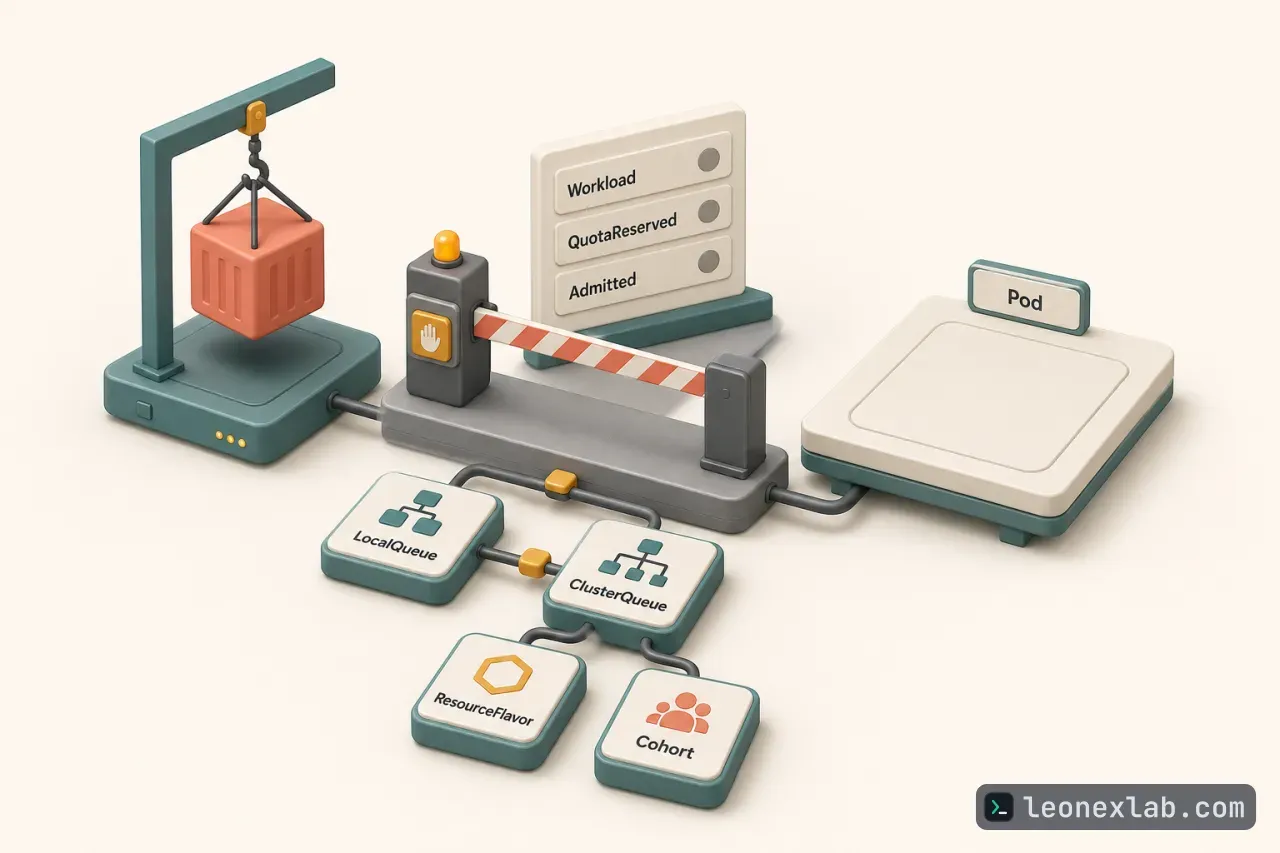
When a Kubernetes Job hasn't started running, the first question isn't necessarily why the Pod is Pending. In a cluster managed by Kueue, the Job may still be suspended because Kueue hasn't yet decided to let it use resources, and in that case there may not be any Pod to inspect. The Kueue plugin for Headlamp brings this investigation into the UI: start from the Workload, read the condition message, then follow the links to the LocalQueue, ClusterQueue, ResourceFlavor and Cohort.
Separating admission from Pod scheduling
Kueue and kube-scheduler answer two different questions. Admission (the step where Kueue allows a Workload to start running) considers queueing policy, quota, ResourceFlavor, admission checks and the other Workloads that are waiting. Pod scheduling happens afterwards, once the Workload has been admitted and the Job is resumed: only then is it determined which nodes can run the Pods.
This boundary determines the direction of the investigation. If the Workload has not been admitted, you need to stay in the Kueue section of Headlamp. If the Workload has been admitted but the Pod is still Pending, switch to Headlamp's regular Job and Pod views and look at the scheduler's events.
Prerequisites and scope of the plugin
Tracing the investigation in Headlamp
The workflow starts from the Workload, not from a shell. In Headlamp, open Kueue → Workloads, select the namespace that contains the Job, then find the corresponding Workload. A Workload is the object Kueue creates to represent a Job's resource request and admission state. The owner reference is displayed as Kind/name text and isn't clickable yet, but the Workload name usually contains the Job name, so filtering by namespace and searching in the table is the fastest approach.
If no matching Workload appears, check three things before going further:
whether the selected namespace is correct
whether the Job has been submitted to a LocalQueue
whether the Kubernetes account has permission to list Workloads
When you open the Workload detail page, read the current status and the conditions before looking at the full YAML. The two most important condition types for troubleshooting admission are QuotaReserved and Admitted. The Events section is also worth reading: conditions describe the current state, while events show what has just changed or what Kueue has tried to do.
Next, compare the Workload's request with what has been assigned. The detail page shows the number of Pods, CPU, memory and other resources that Kueue evaluates together. This matters because a Job with parallelism: 3 where each Pod requests one CPU effectively requires three CPUs in total; looking only at a single Pod's template underestimates the request. If quota has been reserved, the page also shows the ClusterQueue, the assigned ResourceFlavor and the admitted resource amounts.
A LocalQueue is the namespace-level entry point that Jobs use, connecting a namespace's Workloads to a cluster-scoped ClusterQueue. The LocalQueue page shows the namespace, the connected ClusterQueue, the stop policy, the current status, the number of Workloads in the pending, reserving and admitted states, along with conditions, events and related Workloads in the same namespace. From there you can answer two practical questions: did the Job enter the expected queue, and is it the only Workload waiting there. If the LocalQueue is not active or has been stopped, that may already be the explanation.
A ClusterQueue represents cluster-level quota and admission policy for one or more LocalQueues. On its detail page, compare the Workload's request against the following:
the resources covered
the nominal quota for each ResourceFlavor
the current reservation and usage levels
borrowing and lending limits
the number of pending, reserving and admitted Workloads
the queueing strategy and stop policy
the preemption, fair-sharing, flavor-fungibility and admission-check settings
Quota is not always a single pool. A ResourceFlavor can represent a kind of compute resource through node labels, taints, tolerations or topology settings. Follow the ResourceFlavor link from the ClusterQueue when a condition mentions flavor assignment or when the Workload needs a specific type of hardware, such as GPU nodes. If the ClusterQueue belongs to a Cohort, follow that link too: a Cohort lets ClusterQueues share unused quota, and its page shows the parent and child Cohorts, member ClusterQueues, referenced ResourceFlavors, resource groups, borrowing and lending limits and fair-sharing information. These pages help distinguish whether a Workload is blocked because the queue has no quota of its own, because it can't borrow enough, or because no suitable flavor can be assigned.
In the sample scenario, the Workload requests three Pods, totaling three CPUs and 600 MiB of memory. The ClusterQueue has a nominal quota of only two CPUs and two Pod slots. From this, the UI gives a complete explanation:
So Kueue keeps the Job suspended until quota becomes available or the queue configuration changes. This is an admission capacity problem, not evidence that kube-scheduler can't find a node. Headlamp doesn't create new state; it reads the same Kubernetes API objects as any other client and puts the related resources and readable values into one connected investigation flow.
When the Workload has been admitted, and repeating the checks
If the Workload page shows Admitted=True and the application still isn't running, Kueue's part is done. At that point, switch to Headlamp's standard Kubernetes views:
Open Workloads → Jobs and look at the Job's status and events.
Open Workloads → Pods and filter by Job name or namespace.
Select a Pending Pod and read its Events section.
At this stage, look for scheduler-related problems: insufficient node capacity, node affinity, taints and tolerations, topology constraints, persistent volume binding or image pull failures. The handoff rule can be summarized as follows.
Not admitted: investigate the Kueue resources in Headlamp.
Admitted but the Pod is still Pending: investigate the Job, Pod, node and scheduler information in Headlamp.
For later occasions, you can use this short checklist:
Open Kueue → Workloads and select the right namespace.
Find the Workload associated with the Job.
Check the readable status along with the Admitted and QuotaReserved conditions.
Read the condition message and recent events.
Compare the PodSet's resource requests with what was assigned at admission.
Follow the LocalQueue link and confirm its status and its ClusterQueue.
Follow the ClusterQueue link and compare quota, reservation, usage and policies.
Look at the ResourceFlavor or Cohort details when the message mentions flavor selection or shared quota.
If it has been admitted, switch to Headlamp's Job and Pod views.
Comparison with the command line and the limitations of the alpha release
The plugin doesn't replace kubectl or kueuectl when you need scripting, exact object output or configuration changes. It replaces the repetitive, interface-less navigation during interactive investigation. For scripts and GitOps workflows, the command line remains the right tool; for someone asking why a Job is waiting, the linked path in Headlamp is usually easier to read. The comparison below is drawn from how the two sides answer the same question.
Has the Workload been admitted: in Headlamp, look at the Workload's status and conditions; the command-line equivalent is kubectl describe workload with the Workload name and namespace.
Which LocalQueue did the Job enter: follow the LocalQueue link from the Workload; the command line is kubectl get localqueue with the -o yaml option.
Which ClusterQueue provides the quota: follow the link from the LocalQueue; the command line is kubectl get clusterqueue with the -o yaml option.
Which flavor or shared quota matters: follow the link from the ClusterQueue to the ResourceFlavor or Cohort; the command line is kubectl get resourceflavor or kubectl get cohort with -o yaml.
What happens after admission: look at the events in Jobs and Pods; the command line is kubectl describe job or kubectl describe pod.
To reproduce this scenario, the plugin's repository includes sample manifests for Cohort, ClusterQueue, LocalQueue, ResourceFlavor and Job. Apply them to a cluster with Kueue installed, then open the Kueue section in Headlamp. To get exactly the quota mismatch from the example, configure a ClusterQueue with two CPUs and two Pod slots, then submit a Job with three Pods, each requesting one CPU. The Job enters the LocalQueue, Kueue creates the Workload, and the Workload waits because the total request is larger than the quota currently available.
Version 0.1.0-alpha still has some limitations: the plugin has no dedicated flow for creating, editing, suspending, resuming or deleting; a Workload's owner reference is displayed as text and can't be navigated yet; the UI depends on the Kubernetes permissions of the identity Headlamp uses; metrics and a visual relationship map are future directions, not features of this release.
The plugin was developed in the CNCF LFX Mentorship 2026 Term 2 program, using TypeScript, React, the Kubernetes APIs and Headlamp's plugin system. Utkarsh Raj implemented the plugin under the guidance and review of René Dudfield and Kevin Hannon.